
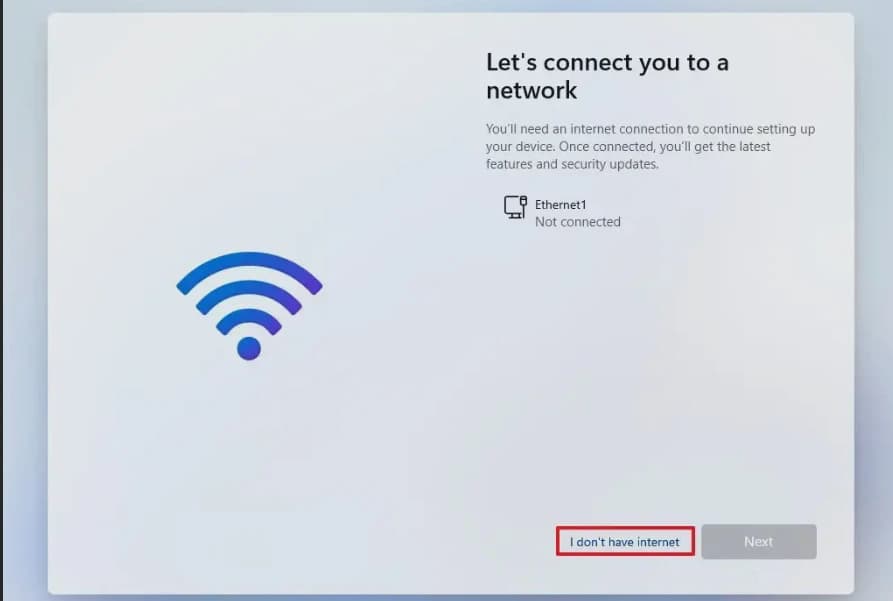
Installing windows 11 requires an internet connection to setup and connect a Microsoft account on the go. However, we don't see any option to not connect to internet and skip this account sign in process. This is called out-of-the-box experience (OOBE).
If the setup detects no internet connection, you will face "Oops, you've lost internet connection". Skipping this process is no longer available on Windows 11 22H2 and higher release. However, for those of you who doesn't have an internet connection or does not want to setup an account to use windows 11, there is a way to bypass this process.
If you are looking for bypassing signing in to microsoft account during windows 11 setup then click here.
Follow these steps to bypass internet connection requirement and clean install and setup windows 11:
Boot your PC with Windows 11 flash drive or if you are resetting your PC skip to step 4.
Press any key and click Next button on selecting language.
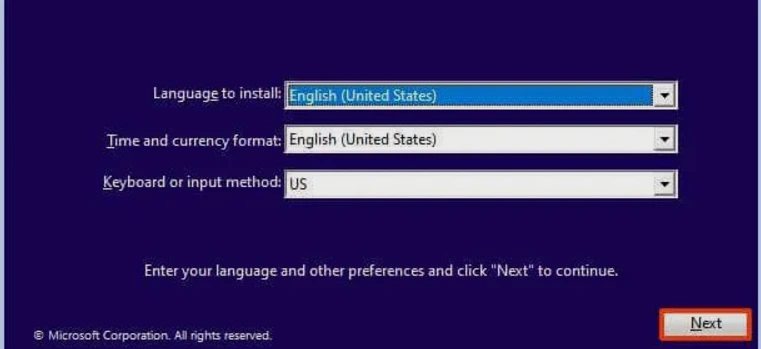
Click Install now.

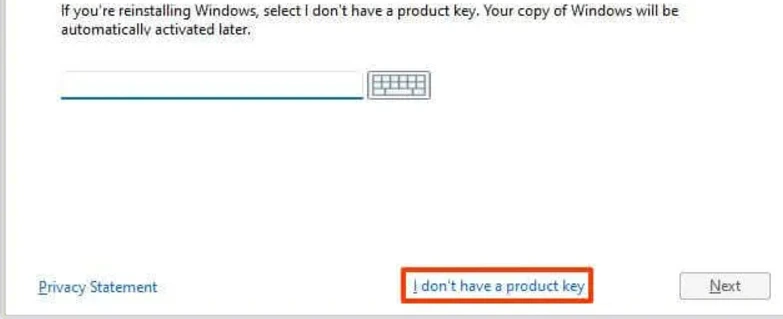
In this step, if you have product key, enter it and click next or just skip by clicking "I don't have a product key.".
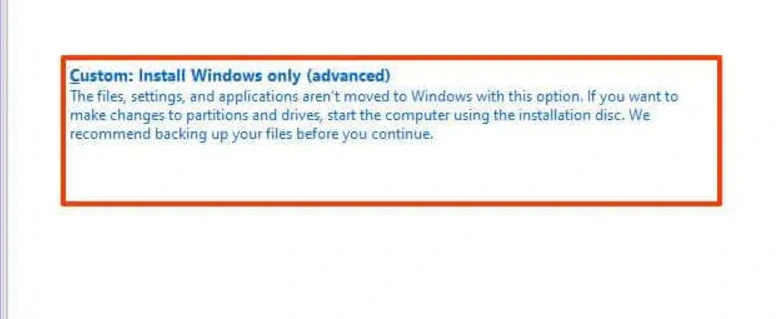
Accept terms and conditions and after that select "Custom: Install Windows only (advanced)".
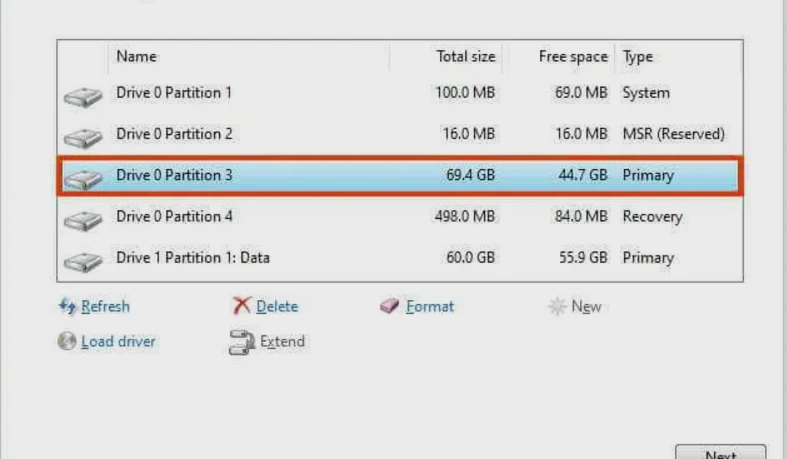
Here, Select the hard drive you want to install windows to and delete, (Caution: Choosing wrong drive will delete all data). Usually, Drive 0 is the drive that contains previous installation files. You can determine which drive to delete by looking at the drive size, the drive with lowest size and its corresponding drive is the drive you need to delete like (Drive 0 Partition 1 has 100MB, Drive 0 partition 4 has 498 MB, so its corresponding Drive 0 partition 3 which has 69GB is the main drive, you can go ahead and delete drives with less than 1GB of storage and the main drive).
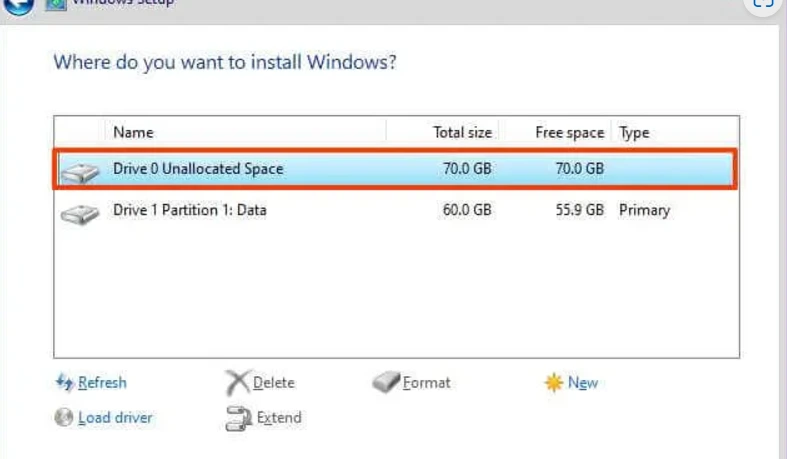
After deleting Unallocated Space will be created, select that drive and click next.
After installation, You will have setup page (or if you have reset the PC). Choose the language and keyboard layout.
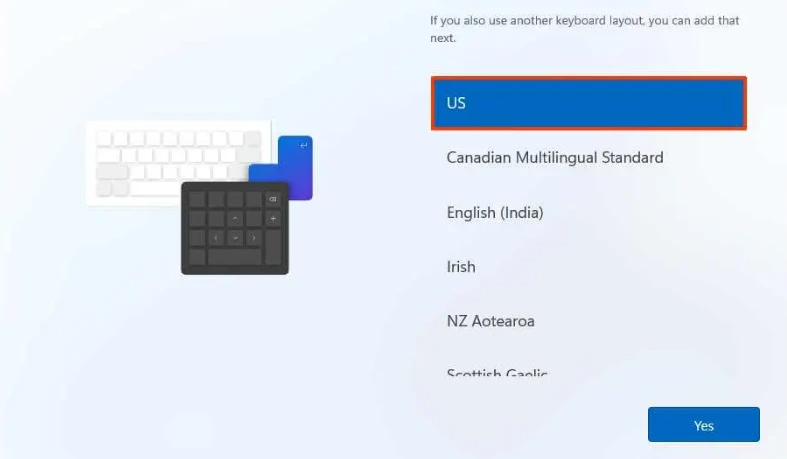
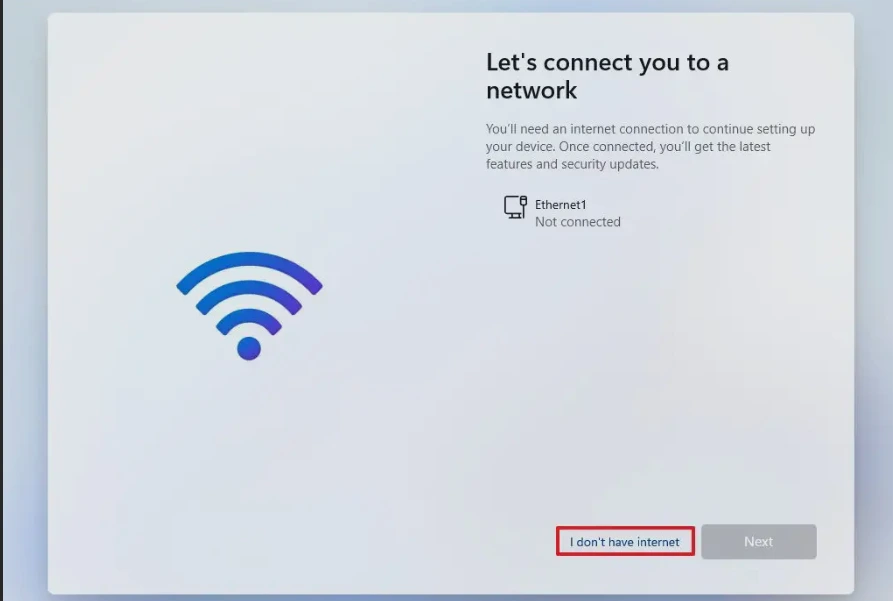
Now, you will be asked to connect to internet. Press
Shift + F10and in command prompt type
OOBE\BYPASSNROThen press enter.
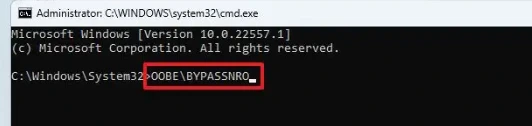
PC will automatically restart and setup will start again. then you will have 'I don't have internet' option. Click it.
Click "Continue with limited setup".
Complete the setup process.
Congratulations! You have setup windows 11 bypassing the internet connection.