
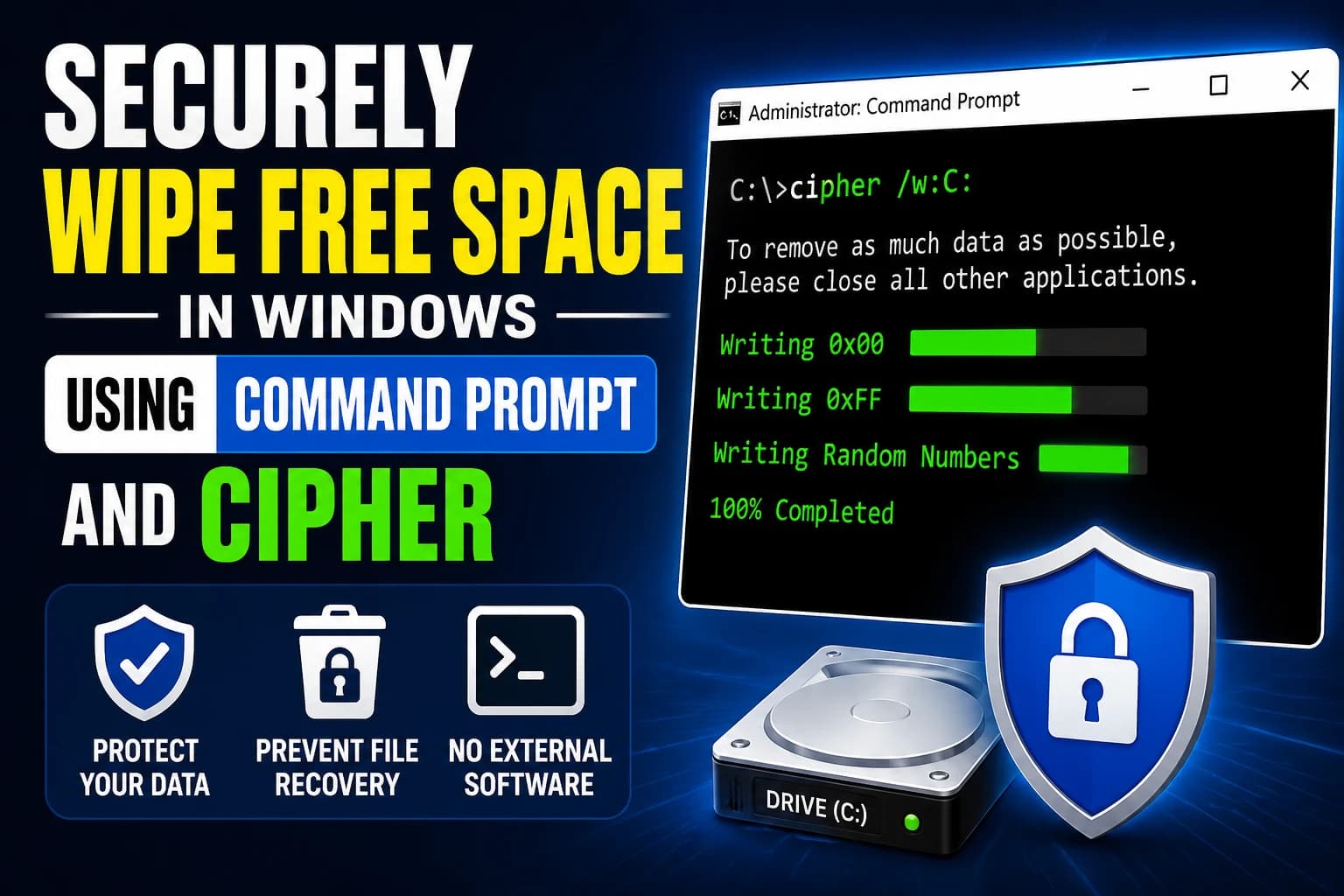
When you delete a file in Windows, it doesn't immediately disappear from your storage device. Instead, Windows simply marks the space occupied by that file as available for future use. Until new data overwrites that space, specialized recovery tools may still be able to restore the deleted files.
If you're selling a computer, sharing a drive, or simply want to protect sensitive information, securely wiping free space is an effective way to prevent deleted files from being recovered.
The good news is that Windows includes a built-in command-line tool called Cipher that can securely overwrite free space without requiring any third-party software.
What Does Wiping Free Space Mean?
Wiping free space overwrites the unused areas of a drive where deleted files may still exist. This process does not delete your current files. Instead, it targets only the free space on the drive.
This is useful when:
Selling or donating a computer
Removing traces of previously deleted confidential documents
Preventing data recovery from old files
Improving privacy and security
Understanding the Cipher Command
Windows includes the cipher utility primarily for managing encrypted files, but it also provides a feature for securely wiping free space.
The command used is:
cipher /w:C:Replace C: with the drive letter you want to clean.
For example:
cipher /w:D:will securely wipe free space on drive D.
How Cipher Securely Wipes Free Space
When the /w option is used, Cipher performs multiple overwrite passes on the free space:
Writes zeros (0x00)
Writes 255s (0xFF)
Writes random data
These overwrite operations make recovery of previously deleted files significantly more difficult.
Step-by-Step Guide
Step 1: Open Command Prompt as Administrator
Press Windows Key
Type cmd
Right-click Command Prompt
Select Run as administrator
Step 2: Run the Cipher Command
For the system drive:
cipher /w:C:For another drive:
cipher /w:D:Step 3: Wait for the Process to Complete
The duration depends on:
Drive size
Amount of free space
Drive type (SSD or HDD)
System performance
Large drives may take several hours to complete.
Example Output
You may see output similar to:
To remove as much data as possible, please close all other applications.

Writing 0x00
Writing 0xFF
Writing Random Numbers
This indicates Cipher is securely overwriting free space.
Important Considerations
Current Files Are Safe
Cipher only targets free space. Existing files and folders remain untouched.
Temporary Performance Impact
During the wiping process:
Disk usage may be high
System responsiveness may decrease
Other disk-intensive tasks may slow down
Administrator Rights Required
The command generally requires elevated permissions to access and overwrite free space effectively.
Using Cipher on SSDs
Modern SSDs use wear-leveling technology, which means data may not always be overwritten in the exact physical location where it was originally stored.
While cipher /w still cleans logical free space, it may not provide the same level of secure erasure as it does on traditional hard drives.
For SSDs, manufacturers often provide dedicated secure erase tools through firmware-level utilities.
Checking Available Cipher Options
To view all Cipher commands:
cipher /?This displays detailed help and additional functionality available within the utility.
When Should You Use Cipher?
Consider running Cipher when:
You've deleted sensitive files
You're preparing a drive for transfer to another person
You've removed financial records or personal documents
You want to reduce the likelihood of file recovery
Conclusion
Many users assume deleting a file permanently removes it from their computer, but deleted data can often remain recoverable for a long time. Fortunately, Windows includes a built-in solution that requires no additional downloads.
By running:
cipher /w:C:you can securely overwrite free space on a drive and significantly reduce the chances of deleted files being recovered. It's a simple, effective, and free method for improving data privacy using tools already included with Windows.